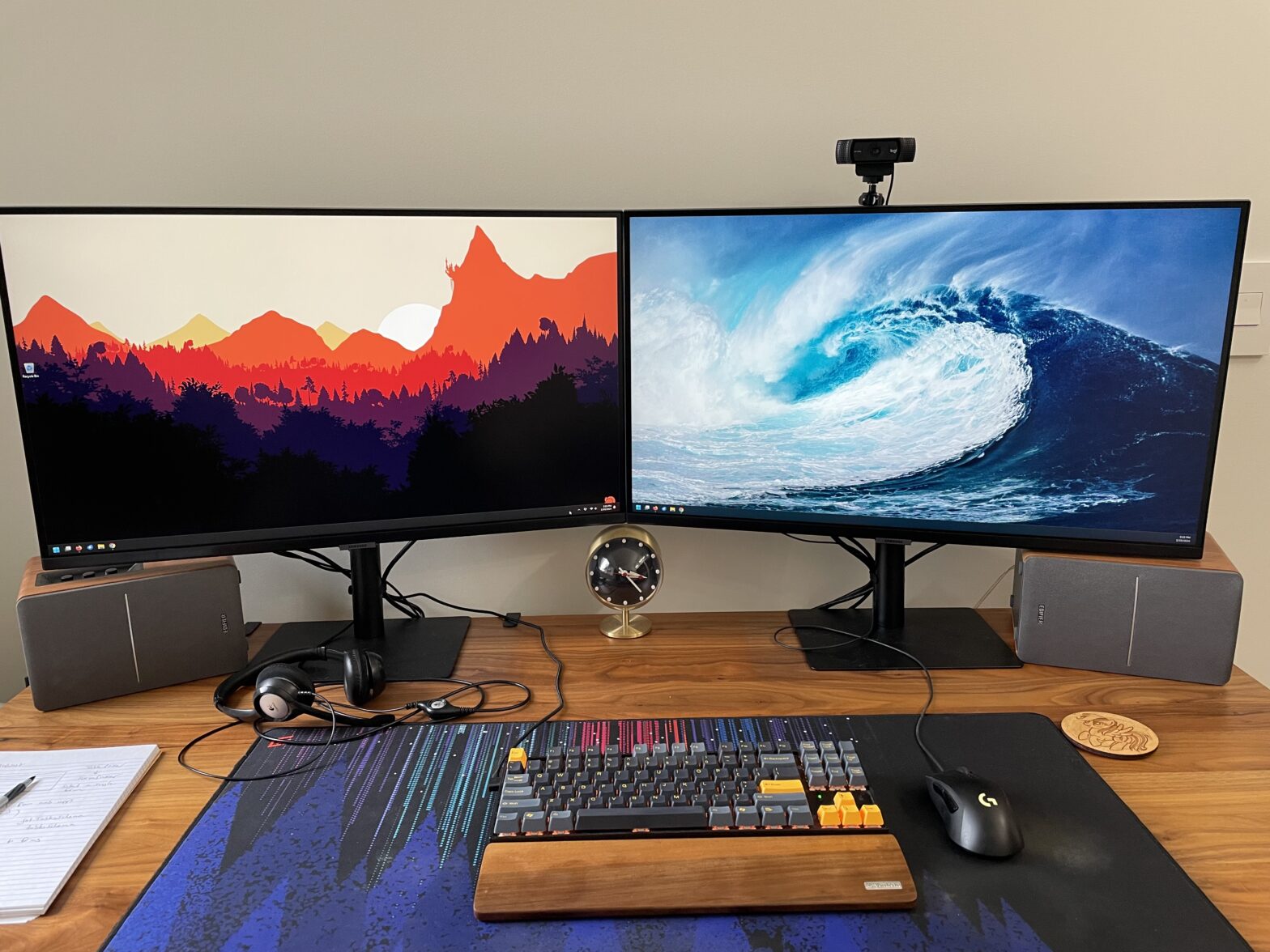
Recently I upgraded my monitors from a pair of Dell 24 inch displays to a pair of Samsung 32 inch displays – but ever since then, there’s been an odd little quirk that, in the grand scheme of things, isn’t a big deal, but it annoys me to no end and I can’t for the… Continue reading An Annoying Display Glitch
Category: tech
The Switching Saga
I work from home full time, and for most of that time I’ve used my own personal computer for doing my work – after all, I built it specifically to meet my needs as a developer, with exactly the right combination of processing power, performance, and disk space that I knew I was going to… Continue reading The Switching Saga
Stress Testing
Every once in a while I get the urge to push my system to the max – my computer system, that is. I built my current PC myself, and I get curious to see how well it performs (and if anything has changed). I recently got this urge again, so I ran a little stress… Continue reading Stress Testing
Keith’s Belated Guide to Mastodon (for Twitter Exiles)
There are a ton of “what is Mastodon” or “getting started with Mastodon” or “what is this Mastodon thing, really?” articles out there already, but this is my blog and I wanted to write my own guide, so here we are. Let’s go! What isn’t Mastodon Mastodon isn’t Twitter. Let’s get that right out here… Continue reading Keith’s Belated Guide to Mastodon (for Twitter Exiles)
Problems remain with Mastodon
Yes, I’m talking about Mastodon again. After the last installment of my Mastodon Saga – where I found that it wasn’t just a database issue that erased my account, but rather a RAID failure – I held out hope that my account and prior posts (and most importantly, follower lists) could be restored. Unfortunately, that… Continue reading Problems remain with Mastodon